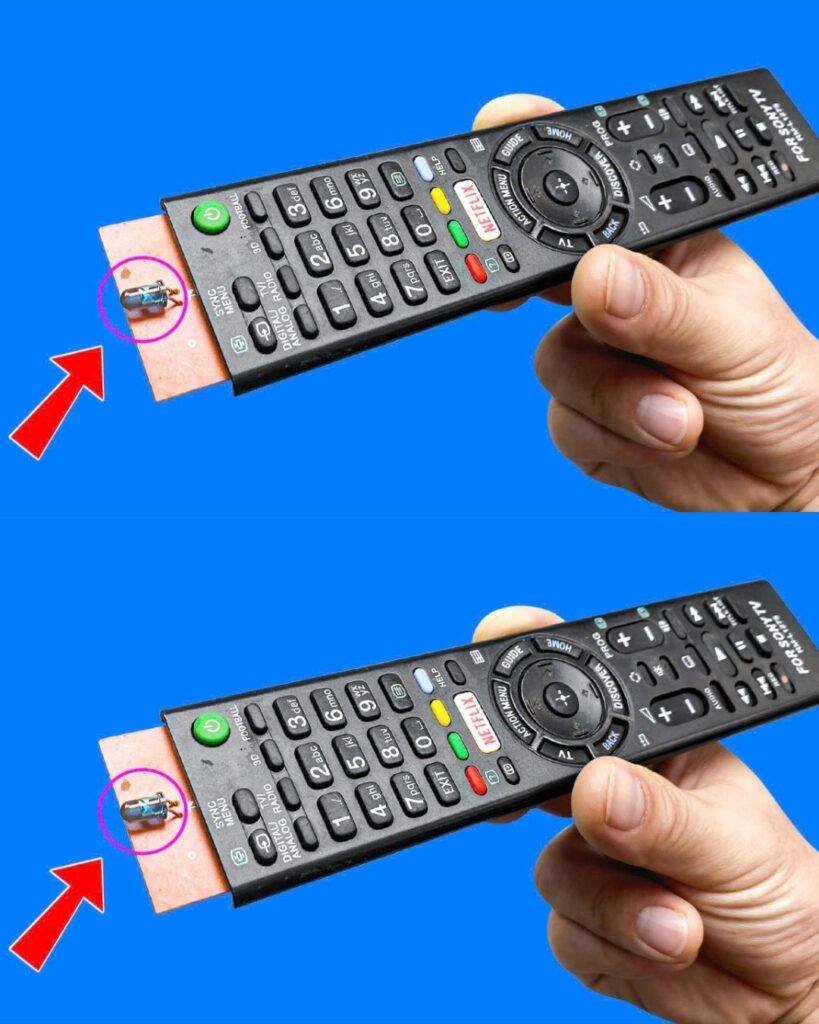
The Hidden Secrets of Your TV Remote Control (That Most People Don’t Know!) 

Billions of people use a TV remote every single day… but most don’t realize the powerful secrets hiding inside it!
Whether you’re a casual binge-watcher or a home theater enthusiast, your remote does more than just change the channel.
Let’s dive into what your remote is really capable of — and how to unlock hidden features like a pro! 

 1. Access the Secret Service Menu (Use with caution!)
Most modern TVs — Samsung, LG, Sony, and others — include a hidden service menu, also known as “factory mode.”
 What you can do in the service menu:
-
Adjust gamma, brightness, and color calibration manually
-
Enable or disable features not visible in the standard settings
-
Reset the TV completely
-
Check technical diagnostics, hardware info, or software versions
 Example: Samsung Service Menu Code
-
Turn the TV off (standby mode)
-
On the remote, press:
Info → Menu → Mute → Power -
The TV will turn on and enter the service menu automatically
 Warning: Changing values in this menu without knowing what they do can break your TV display or void the warranty. Use responsibly or with professional guidance.
 2. Use Your Phone to See If the Remote Is Working
If you’re not sure whether your remote is sending signals, try this fun trick:
 Smartphone Infrared Check
-
Open your smartphone’s camera app
-
Point the remote’s top toward the lens
-
Press any button on the remote
-
If you see a blinking white or purple light, your remote is working!
 Works on all IR remotes . A great way to diagnose a “dead” remote !
 3. Control Your TV With Your Smartphone (No Remote Needed!)
If you’ve lost your remote or want more control, most modern TVs support apps like:
-
Samsung SmartThings
-
LG ThinQ
-
Sony TV Remote
-
Or universal apps like Peel, Mi Remote, and Roku App
These apps allow:
-
Full remote control from your phone
-
Easy typing using your mobile keyboard
-
Casting photos and videos directly to the screen
-
Voice commands!
 4. Clean Your Remote – and Bring It Back to Life
Sticky buttons or unresponsive inputs? It’s time to clean your remote:
-
Remove the batteries
-
Use a cotton swab with alcohol to clean between buttons
-
Tap it gently upside-down to remove debris
-
For deep cleaning: open the casing with a screwdriver and clean the inside membrane (only if you’re confident)
You’ll be surprised how often a remote “malfunction” is just dust or soda residue!
 5. Remap Buttons on a Universal Remote (Advanced Users)
If you use a universal remote, some models (like Logitech Harmony) allow you to:
-
Reassign buttons
-
Create custom routines (e.g., press one button = turn on TV, switch input, start Netflix)
-
Control multiple devices from one remote!
 Final Thoughts